
Wanted to add a pay now button to your invoice? And want your customer to pay online? No issue, let us solve your query. Adding a Pay now button and a Payment link to QuickBooks Desktop Invoices helps your customer to pay you online. An invoice is the proof of the transaction which is given by the seller to the customer. You can add a pay now button to your invoice easily.
Here in this blog, we have discussed how to add a Pay Now button to a QuickBooks Desktop invoice, the benefits of adding a Pay Now button, what to do if the QuickBooks Pay Now button is missing, and the things you need to note while using payment links.
How to Add a PayNow Button to a QuickBooks Desktop invoice?
If you want your customer to pay online then you must activate your merchant service. Without activating the Intuit merchant service you cannot do any online payments. You can easily enable QuickBooks Payments by clicking on the Online Payment get set up, which you can find at the top of your invoice. After the activation of the merchant service your customers will be able to see the pay online option. If you want to know the steps to add a pay now button to QuickBooks Desktop Invoice then you can follow the given steps below. For any further help you can contact the QuickBooks Support team.
Adding Payment Link to an Invoice
Have a clear look at the easy steps for adding a payment link to an invoice. Make sure to follow these steps accordingly:
- Firstly, you have to click on the invoice.
- Now, you can add a new customer or select an already added customer.
- After that you have to enter all the information about the goods or services that you are selling with the mentioned price.
- You have to make sure to turn on the online payment option. After that, click on the save and send.
- After clicking on the save and send option, QuickBooks will show you a preview of the particular invoice.
- In the preview, you need to select a payment method, for examplecredit card or a bank transfer.
- After the completion of all steps click on the send and close option to email your invoice.
- After that your client will get an email with the invoice and a payment link.
- Now your customers need to open the same email and choose the option, View invoice now.
- Your client will see a Pay Now button in that invoice, on which the client has to click.
- After that, enter all the bank account details.
- When the payment is completed both the service provider and client will receive a confirmation email for the particular transaction.
How Can You Add a Pay Now Button to an Emailed Invoice?
Here we have provided some easy steps to add a pay now button to an emailed invoice:
- Firstly, click on the gear icon.
- After that you have to select the option of the account and settings.
- In the payment section, go to the learn more.
- After that, finish all the company details.
- Now you will be directed to the QuickBooks Payments page. On that page click on the Add QuickBooks Payment.
After 48 hours, you will be prompted via email once it is approved. After that, you can send invoice with the Pay now button.
Steps to Send Payment-Enabled Invoices?
Follow these steps to send a payment-enabled invoice in QuickBooks:
- You have to create an invoice and fill it up with the required information.
- Make sure the payment option is enabled in the online payment section.
- Review the Invoice and click on the send button.
What are the Benefits of Adding a Pay Now Button to QuickBooks Desktop Invoice?
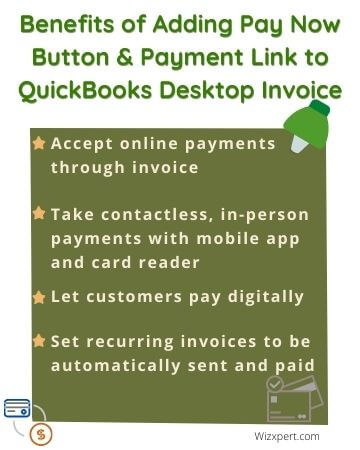
- Faster Payments: Adding a Pay Now button to the invoice makes the payment faster from the customer’s side.
- Many Payment Options: It offers multiple payment methods, for example, card, ACH payment, Google Pay, etc., directly on the invoice.
- Security: Payments will be processed securely with industry standard encryption.
- Time Saver: Less time spent chasing the payments or manually entering transactions.
- Automated Reconciliation: The payments automatically match to invoices in QuickBooks, which saves time and reduces errors.
What Can We Do if the QuickBooks Pay Now Button is Missing?
Normally, you can add the pay now button or payment link easily when you preview your invoices by clicking on the review and pay button. But because of the recent upgrades in QuickBooks, especially in the layout of the invoices, you need to download the related invoice to preview the invoice.
Sometimes, if the payment link is unavailable, that may be due to the email preferences being set to plain text. For this you can follow the steps given below:
- Go to the QuickBooks accounting software and then click on the gear icon at the top.
- After that you have to click on the account and settings and find the sales menu and click it.
- Later, open the online delivery option.
- After that, choose the additional email options for the invoices drop-down menu and click on the Online invoices option.
- At last, click and save. After that, it is completed.
Things You Need to Note While Using Payment Links
Here are some things you need to note while using the payment link in QuickBooks:
- Payment links are used for single use. A payment link is only used for an individual customer
- Payments are displayed as customer credits that are made via payment links. Nothing is changed in your books until the invoice credit is applied.
- Even the clients can not change or pay half the amount. They have to pay the full payment. When they submit the payment a receipt is generated automatically.
- It is not possible for a payment link to follow up on an invoice for an invoice that was previously sent.
Conclusion
Adding a pay now button or Payment links to the Invoice makes the work easier for everyone. It not only gives benefits to the Service provider but also to the clients by giving them various methods of payment. It removes the stress of the seller chasing the payments. Mainly, you can add a pay now button to the QuickBooks Desktop Invoice easily by following the steps given in this blog. If you have any other queries, you can contact our ProAdvisor.