
If you are running a small business, it is mandatory to run your business with proper planning and proper management. It is not easy to fill all the requirements of the business. There are many issues that business owners face while running their business, and one of them is the management of finances. In that case company can use the accounting software, and QuickBooks is one of the best accounting software, and it also support muti-user accessibility.
You need to download the QuickBooks database server manager if you want to access the QuickBooks software with the help of multi-user support. The QuickBooks database server manager helps in the improvement of the user experience that’s why it is most in demand. Multi-user is maintained easily with the help of the QuickBooks database server manager.
In this blog, we will explain what the QuickBooks database server manager is, steps to download and install the QuickBooks database server manager.
What is QuickBooks Database Server Manager?
The QuickBooks database server manager is also a tool for personal database management. QuickBooks Desktop can be directly connected with it. After that QuickBooks database server manager download you can make your workflow very easy. The database server manager helps you to create a network data file on the hosting system.
If you want to access multi-user mode, you must download and install QuickBooks server manager; without this, you can’t access the multi-user mode. You can scan the company file and check for it from the computer storage. With the help of the database server manager, you can detect it in a new QuickBooks file. QuickBooks database server manager also helps to share your company file with other workstations if they are connected to each other and make a network, and connect with the server.
Features of the QuickBooks Database Server Manager
Here are some features of the QuickBooks database server manager. These steps can be followed after the installation of the QuickBooks database server manager.
- QuickBooks is the multi user, allow user to access multiple features, and this is the top feature of QuickBooks Server Manager.
- Install Server Manager in Synchronize Manager is useful if you want to use multiple versions of the software.
- A new user is added in every version of QuickBooks.
- QB server manager enables the system to recognize and access all types of data stores in your PC.
- The QB database server manager also has a feature that allows automatic updates of essential tools.
- It offers a secure connection between the company file and the user and reduces the risk of data corruption.
Uses of QuickBooks Database Server Manager Tools
Before the QB database server manager, you need to know the uses of the QuickBooks database manager server.
- You can check the local storage of the system, which will help you to detect the new company file.
- The system scans important company files to enable multi-user access automatically.
- It will generate the.ND files are automatically on the host server.
- This process also assists you in monitoring and tracking the local hard drive of your company.
Important Points Before Downloading QuickBooks Server Manager
Here are some important points which are related to the QuickBooks database server manager.
- This tool can create network data and .ND files.
- The .ND file will be created for all company files stored in the host computer.
- The tool allows you to use the different variations of the process, but it does not provide multiple versions of software at the same time.
- If you want to add or use the QuickBooks desktop version on any computer, you must install this tool,
- Install the latest version of the QuickBooks database server manager (QBDBSM) on your system.
Steps to Download the QuickBooks Database Server Manager
Follow the procedure to download, and install the Intuit QBDBMS;
Step 1: Download the Database Server Manager Update
The QuickBooks database server manager is a part of the QuickBooks Desktop file. If you already have the QuickBooks Desktop, then you need not download the QBDBMS separately. And if you haven’t, download QuickBooks Desktop. But keep remembering that the Database Server Manager update version is needed for your system.
Step 2: Install Intuit’s Personal Database Manager Tool
You need to install the tool in the server system, where you host your company files. Follow the steps to install the tool successfully.
Note: If you are a user who hosts multiple versions of QuickBooks Desktop on a network, then install them in chronological order from oldest to newest.
- First of all, close all of the running programs (including QuickBooks) on your server computer.
- Now open the downloaded file ‘Setup_QuickBooks.exe’ to install the tool.
- After that, QuickBooks will instruct you to follow some of the steps onscreen. Just follow them.
- And keep your license and product number beside you.
- QuickBooks will show you 2 types of installation: Custom or Network Options, and Express Options.
- Select the ‘Custom or Network Options’, as your installation type and the ‘Next’ option.
- After that, select any one of the options for the network setup.
- If you require Database Server Manager and QuickBooks Desktop on your server computer, then click on I’ll be using QuickBooks Desktop on this computer, AND I’ll be storing…. We highly advise this option.
- If you need only Database Server Manager on your server computer, click on I will NOT be using QuickBooks Desktop…
- Go with the rest of the onscreen instructions. When you’re ready, click on Install. Windows may ask you for permission.
- Allow these users to access the folders that hold your company files. Whenever you set system-level permissions, you can see these users.
Note: QuickBooks generates a new Windows user for every version of Database Server Manager. For example, Data Server Manager 2020 creates the show as QBDataServiceUser20.
Configure the Database Server Manager
If you want to set up all these things as default, then you can avoid this configuration process and can jump to Step 3.
- Click on the ‘Windows Start’ button.
- Type “Services” in the search bar.
- Open the Services, and launch the QuickBooksDBXX (XX is the version number).
- After that, find the Services Status section from the ‘General’ tab.
- If the service status is in running mode, then stop it.
- Go to the ‘Startup Type’ to select the ‘Automatic’ option.
- Select the Local System Account option from the ‘Login’ tab.
- After that, go to the ‘Recovery’ tab.
- There, you need to select the ‘Restart the Service’ option from each of these menus.
- First failure
- Second failure
- Subsequent failures
- Again, visit the ‘General’ tab, and click on the ‘Start’ option to restart the database server manager.
Step 3: Set Up the Firewall Permission
It is the most important step to set up the firewall permissions to run the database server manager perfectly. This will make clear communication between the QBDMS and the server system.
So, ensure that the permission is accessed for the server manager, and if it isn’t yet, then set up the firewall port.
Step 4: Update the Database Server Manager
This step is not necessary during the installation time; it may be required later. But whenever you need to update the database server manager, you can easily do it by updating the QuickBooks Desktop.
It has no individual procedure to update; it will update automatically when you update your QuickBooks Desktop version.
Setup of QuickBooks Database Server Manager
- For the setup of QBDSM, you need to open the QuickBooks Database Server Manager first. It helps in scanning the files that are configured for the use of multiple users.
- You can add the new QuickBooks company file to the server. For this, click on Add New Button.
- Use the Administrative tool for updating Database Server Manager.
- Make sure that the company files are connected to the server.
- Ensure that every user logs in to the company files.
- Use the service administrative tool to change the user service status.
- You have to add the function of Upgrading and Uploading in QuickBooks Server.
How to Use QuickBooks Database Server Manager?
After the complete installation of QBDBMS, you need to scan the company files to access them on other computers over a network.
Here is the setup and use process of the server manager.
Step 1: To Open Server Manager
- Go to the Start button.
- Click on the ‘Programs’ option.
- And select QuickBooks.
- Then choose ‘QuickBooks Database Server Manager’.
Step 2: Scan the Folders
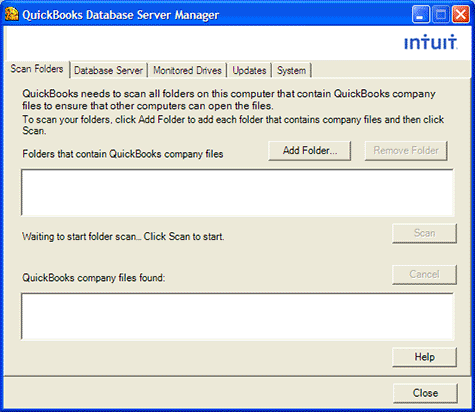
When you store all company files on the server must be scanned once to ensure that it’s configured to allow other users access to these company files easily.
- Open the QuickBooks Database Server Manager on the server system.
- Click on the Scan Folders tab.
- Then, click ‘Browse’ to select the folder that holds company files (QBW).
- After that, click on the ‘OK’ option.
- Select the ‘Start Scan’ option to start the scanning process.
- After the scanning process, you can access the company files in the ‘QuickBooks company files found’ folder.
- If you can’t find the file that you want to scan, then scan the whole disk.
Note: The 2019 version of the QBDBMS shares all of the folders, so you can set folder permissions to give access to the specific files through the database server manager.
Step 3: Monitor the Drives
The monitor drives tab holds all of the scanned folders. Here you can monitor all of the folders from the drive. In this way, you will not need to rescan the folders further if you make any changes to the company files.
- Visit the ‘Monitored Drives’ tab.
- Check the box where the company files are stored.
- Make sure to only add drives that hold the company files.
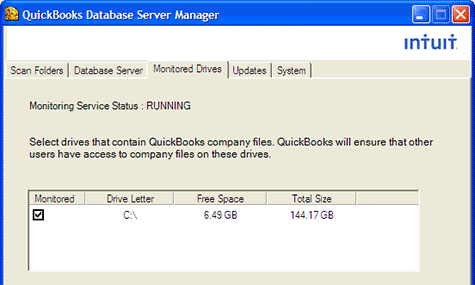
Exception: It is not allowed to monitor mapped drives.
Note: It’s not possible to display and monitor the mapped drive.
Step 4: Manage the Database Server Tool
Apart from the above-discussed tabs, there are some other tabs that help you to keep everything running smoothly. Like;
System Tab: It helps you to detect the location of the installed data server manager tool on the computer.
Database Server Tab: It shows the real-time status of the tool, by which you can easily know who is connected to the tool.
Step 5: To Add a Folder
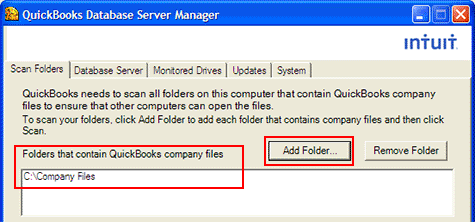
- Click on the add folders button.
- Select the folder you want to add.
- The position of this folder is under the folders that contain the QuickBooks company file.
Step 6: To Remove a Folder
This step is optional for you. If you need to remove any folder, you can easily remove the folder by clicking on the particular folder and then clicking the Remove Folder.
Step 7: Restart the QB Database Server Manager
After the setup of all settings tabs, restart the database server. Follow the procedure to restart it.
If you have installed both QuickBooks Desktop and QuickBooks Database Server Manager;
- Launch the QuickBooks Desktop on the server system.
- Click on the ‘Open a Restore Company’ option from the ‘File’ menu.
- Select the ‘Open a Company File’ option to open a file.
- Then click ‘Next’.
- Tick the mark on the Open file in the multi-user mode box, and open it.
- After that, log in to the company file, using the id, and password.
- Select the ‘Close Company/Log off’ option from the ‘File’ menu. (This will close the file on the server.)
- At last, go to the ‘Start’ button, type: “Database”, and open the QuickBooks database server manager.
If you have installed the QuickBooks Desktop only;
- Open the ‘Control Panel’, and select the ‘Administrative Tools’ section.
- Choose the ‘Services’ option from the list, and right-click on the QuickBooksDBXX service. (XX is the version of QuickBooks)
- At last, click on the ‘Restart’ option.
How to Repair QuickBooks Database Server Manager?
To repair the QuickBooks Database Server Manager, you need to follow the steps given below:
- Open QuickBooks and go to the file menu options.
- Next, go to the Utilities for Rebuilding the Data.
- Go to the information window and then select the OK button.
- Wait for a few minutes until the repair is completed.
- After completing the repair processes, you have to click on OK.
How to Uninstall QuickBooks Database Server Manager?
If you do not run QuickBooks in multi-user mode and want to uninstall Intuit’s personal database server manager, then you can follow the procedure below to uninstall it.
- Go to the Programs and Features under the Control Panel.
- Now look for the QuickBooks Database Server Manager.
- Click on Uninstall/Change at the top of the window.
Now, go with the on-screen instructions to Uninstall/remove the program.
How to Install Linux Database Server Manager?
If you want to install QuickBooks Desktop Enterprise Linux Database Server Manager, you must be familiar with the Linux operating system, understand network operations, & have administrator access to install & configure the software.
Components
The Linux database server manager consists of three components:
- The Database server files
- The qbmonitord daemon
- The qbmonitord configuration file (qbmonitord.conf)
System Requirements
| Hardware and Software | Minimum | Recommended |
|---|---|---|
| Processor | 1.2 GHz Intel Pentium 3 | 2 GHz Intel Pentium 4 |
| RAM | 1 GB | As much as possible |
| Disk Space | 2.5 GB | Additional space for the QuickBooks company files |
What functions does QuickBooks Database Server Manager offer?
- You can access each company file’s list of users who are currently logged in, as well as the company files that are currently connected to the server.
- You can get the status of the QuickBooks Database Server, which shows its services, but when the server is hosting the firm files, all services should be active.
- There is an option to change the status of the services. For this, use the Services Administrative Tool to configure the services QBDBXX if you wish to change.
How to use updated features
- Click the “Start” button first, then “Program,” “QuickBooks,” and then “QuickBooks Database Manager.”
- After that, select “Updates.”
- Follow the directions on the screen in order to install the updates.
Frequently Asked Questions
We are going to discuss some of the most frequently asked Questions about the QuickBooks database. Read the following questions and their answers.
Where do I find the QuickBooks Database Server Manager?
To open QuickBooks Database Server Manager, go to the system that hosts your company file.
1. Click on the Windows Start button and type QuickBooks Database.
2. You can find the QuickBooks Database Server Manager file. Click on it to open.
Does QuickBooks use a database?
QuickBooks uses a powerful, industry-standard SQL database. It helps to share the company file over a network to the same or remote server. The SQL database uses client-server technology in multi-user mode to manage access to company files.
How do I set up my QuickBooks server?
To set up for QuickBooks Server, you need to adjust settings in QuickBooks, Windows, and your server. Follow the below steps to do so:
1. Set up QuickBooks
2. Set folder permission
3. Install Database Server Manager
4. Set admin rights
5. Use Database Server Manager
6. Turn on the hosting
It’s all about the QB database server manager. Hopefully, now you can download, install, and update the QBDBMS itself. Still, if you have any kind of queries related to this topic then feel free to contact our QuickBooks ProAdvisors through the toll-free number [quickbooks].