
If you want to know how your multi-monitor support works in QuickBooks Desktop? Well, we provide you a significant information related to multi-monitor support. Multi-monitor support enhances workflow, and QuickBooks offers strong support for this feature. We will use the multi-monitor to improve our computer’s features that will help increase the reliability. Read this article and understand all the details of multi-monitor support, its benefits, and the reasons to use it, along with learning to fix the errors that occur while using multi-monitor support.
Why We Need to Use Multiple Monitors Support in QuickBooks?
Multiple Monitors allowed you to work on various tasks without constantly switching between tabs or windows. Using a Multi-monitor with QuickBooks enhances productivity and easily manage the financial data. This allows you to open multiple windows or reports. That is really beneficial for QuickBooks users who maintain a large amount of data and financial tasks.
Key Benefits of Using Multiple Monitors with QuickBooks
Here are the some benefits of using multi-monitor with QuickBooks.
Enhanced Workflow Efficiency
Using several monitors, you are able to extend the windows of your QuickBooks over different screens. It means that one screen can demonstrate your balance sheet, and another show your profit and loss statement, while a third screen may have customer details. Thus, the process of switching windows is completely removed, saving time and allowing the user to be more focused.
Easier Data Entry and Review
In case you are entering financial data or invoices, having a different monitor for your accounting software and another for the reference materials (like spreadsheets or contracts) will be a gentler way of doing it and will reduce the chances of errors. You can quickly grab the required information without breaking your workflow.
Improved Task Management
Handling several QuickBooks tasks would become much simpler if you had several monitors. For example, if you have a one-screen screen and you fully utilize it for payroll management, while the other can be used to show the real-time updates on cash flow or accounts payable. So, without the need to constantly switch between various tabs, you stay familiar with different tasks.
Better Collaboration
In case you are a team member or working together with an accountant, multiple monitors can make collaboration more comfortable and efficient. There is a possibility of one monitor displaying the QuickBooks dashboard with another showing the shared project details, thus making the interaction more lively and systematic.
Steps to Use Multiple Monitors in QuickBooks
Step 1: Check Your System Setup
- First thing is to check your system it is capable of having two or more screens or not.
- After connecting your monitors, make sure that Windows is detecting them. And click on desktop, go to Display Settings, then Identify.
Step 2: Arrange Your Monitors and Open QuickBooks
- Rearrange the monitor icons by dragging them in the Display Settings to represent the physical setup of your monitors.
- If you want, you can set one monitor to be the Main Display.
- QuickBooks Desktop should be started on your main monitor.
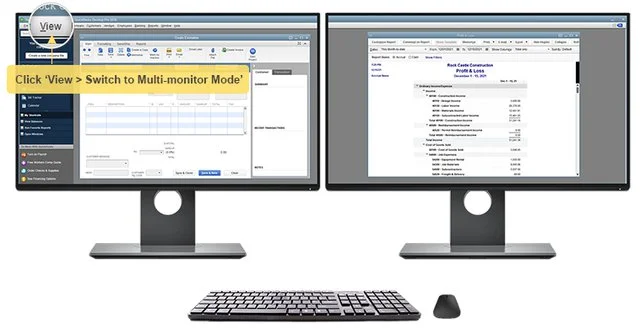
Step 3: Switch QuickBooks to Multi-Window Mode
- QuicKBooks allows a multiple-mode window if you want to use it on multiple monitors.
- Click on View Switch to Multi-Window Mode
- By doing this, you can open each of them can be moved separately.
Step 4: Drag QuickBooks Windows to Other Monitors
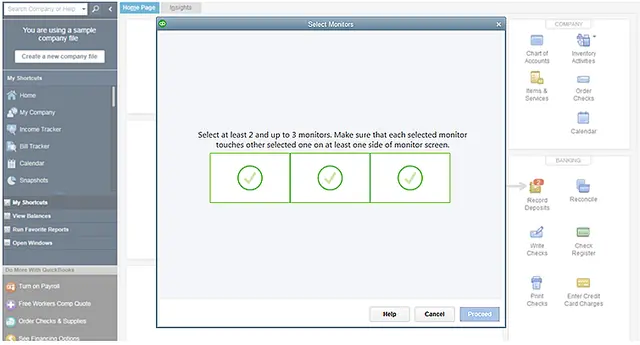
- You can check different departments with the help of dragging the QuickBooks window to another monitor, such as the reports, the Charts of Accounts, and the Customers, etc.
- Move your cursor to the window header and click it, and drag it to the second or third monitor and resize the windows as you want.
Step 5: Keep Windows Organized
- Keep the ones (Dashboard, Transactions) that you use frequently on your main monitor.
- Do the rest of the work (Reports, Lists, References) on the spare monitors.
- Yes, you can work with multiple QuickBooks windows separately, i.e., independently.
Step 6: Save Your Layout and Optimize Display Settings
- Close QuickBooks when the windows are distributed on each monitor.
- Open QuickBooks again; it will not ask, but do the same layout automatically.
- If characters or the interface are looking skewed or not correctly aligned.
- Then click on Desktop, go to Display Settings
- Set your Scaling either to 100% or 125%
- Also, try to match the resolution of the two monitors.
Fix Common Errors When Using Multi-Monitors in QuickBooks
QuickBooks Window is not moving on the second or other monitor.
If you face the first error. You have to restart QuickBooks immediately. And switch QuickBooks to Multi-Window mode and click on View, then Switch to Multi-Window Mode. And try dragging the window again.
QuickBooks will get stuck when using multiple monitors.
You want to handle this error, so update your QuickBooks to the latest version. And increase the RAM if your system is slow on memory, or close unnecessary background running apps when you are working. After checking all of this, reboot your computer.
QuickBooks opens on the wrong monitor, so the user faces an error.
Now drag QuickBooks to the desired monitor and close QuickBooks when you reach that monitor. After that, reopening it will remember the last screen.
Many computers do not support multiple monitor mode. So they do not work properly.
You need to click on View and click the Switch to Multi-Window Mode, and don’t forget to turn off the tablet mode in Windows if it’s on. Update your QuickBooks and graphics drivers. After that, restart QuickBooks and try reopening multiple windows.
Limitations of Multiple Monitor Support in QuickBooks
- QuickBooks Desktop does not support older versions. You want to use a multi-monitor mode, you have to use QuickBooks Desktop 2018.
- You cannot move all the windows to a second monitor.
- If your system does not work properly because of using multiple monitors, it directly impacts your QuickBooks performance.
- If your system screen is more than 100% you have to face blurry text, misaligned windows, or small or tiny buttons, etc.
- QuickBooks does not support the advance function on touchscreens. Many users complained there touch gestures are not smooth.
- Very hard to sync multiple users for QuickBooks
Conclusion
Multiple Monitor support in QuickBooks is a straightforward process that helps to enhance productivity and improve task management. After reading this article, you can easily use the multiple monitor support in QuickBooks. And you can handle common errors easily that come with using multiple monitor support. And also understand the limitations of using this feature. Resolve all your queries. If you feel you are stuck on understanding this feature, you can communicate with a QuickBooks ProAdvisor.