
Are you trying to find the reason why QuickBooks Multi user mode is not working? Then you are in the right place. In this article, we have briefly explained the information about when QuickBooks can’t switch to multi user mode, the requirements for fixing this error and step-by-step solutions to fix it. You can read this article and resolve all your queries. For any assistance or support, contact our QuickBooks ProAdvisor toll-free.
If you have switched from a single-mode to multi user mode, there may be a chance that the multi user mode doesn’t work and you face QuickBooks Error H202 or QuickBooks can’t switch to multi user mode. However, this is an unusual error that you might not receive but it can be passed on to the server of the other system. It may get errors on QB File Doctor saying *QBDBMgrN was not running on this computer”.
Overview of the QuickBooks Multi User Mode
QuickBooks multi user mode is the feature which allows multiple users to access the same company file at the same time to work on it. QB multi user mode is especially designed for businesses with multiple employees, accountants or teams, mainly who need to collaborate with the team on financial tasks in real time. In multi user mode, different users can perform various functions such as invoicing, reporting, etc., without interfering with each other’s work.
When You Can’t Switch to the QuickBooks Multi User Mode?
You’re not able to switch to multi user mode QuickBooks when:
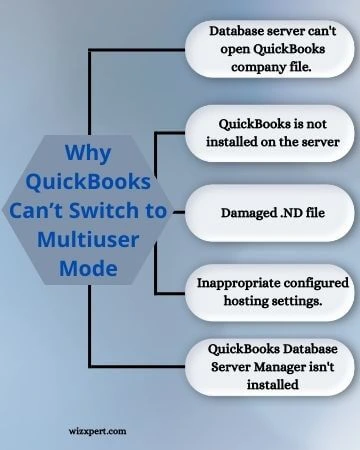
- If QuickBooks is not installed on your server computer then it can cause this error.
- QuickBooks multi user mode won’t function properly if the hosting settings on your network are not configured correctly.
- You are unable to switch when QuickBooks is not able to get the IP Address of your system.
- Not able to switch to the multi user mode when the QuickBooks Database Server Manager is not running or is unable to open the company file.
- Improper file or folder permissions can be a reason.
- Improperly configured Windows file permissions.
- Incompatibility between the computers on your network, which is due to firewall issues can also prevent multi user mode from working.
The Few Things to Check in QuickBooks Multi User Mode
You can read these points to check in QuickBooks multi user mode:
- Make sure that the QB Database Manager is running on the same computer on which the file is hosted.
- Make sure that all the workstations and the servers are on the same network and QuickBooks is not blocked by the firewall.
- You have to make sure that the company file is hosted on the server and is accessible by all the workstations.
- You can go to the user’s opening QuickBooks company file and get it to delete from the recently accessed list and then re-add it.
- If the situation occurs that multiple QB company files are running on the same workstation, then both cannot be opened in multi user mode.
Requirements For Fixing the Multi User Mode Not Working Error
There are a few requirements for fixing the multi user mode not working error:
- Your system must support multi user mode.
- You must enable correct user permissions.
- In settings, multi user mode must be turned on.
- Your software and OS both must be updated.
- You have to install the QuickBooks Database server on your system.
- Keep in mind the same version of the Server Manager as the QuickBooks version you are currently using.
Solutions to QuickBooks Multi User Mode Not Working
Follow these points to know the actual solutions to QuickBooks multi user mode not working issue:
Check and Verify Hosting Settings:
On each computer, go to the file menu, then click on the utilities on your computer and then make sure that only the server has the host multi user access enabled, while all workstations have selected Stop Hosting Multi User Access
Use QuickBooks File Doctor:
You have to download the QuickBooks File Doctor tool from the official Intuit website and run it. This tool automatically detects corrupted files and will help you analyse whether your system is properly set up for using multi user mode or not.
Check for Updation:
Always ensure that you have updated your QuickBooks and Windows to the latest version on all the computers.
Check Network Connectivity:
Ping the server from a workstation to make sure that it can communicate, and also make sure that all the computers are on the same network. Otherwise, this can be a reason for the QuickBooks multi user mode not working problem.
Use Database Server Manager in QuickBooks:
- You should use Database Server Manager to have solutions for QuickBooks multi user mode not working.
- Open the database server manager on your computer and go to the folder storing the file.
- Click on the OK button and then scan it.
Following these steps, firewall permission will be repaired. After that you can check whether the QuickBooks multi user issue is resolved or not.
QuickBooks Install Diagnostic Tool:
Use this tool to check and repair any problems in the installation of your QuickBooks
Ensure that QuickBooks Sends Data:
This solution has two steps-
- Change the settings of the firewall or antivirus software.
- You can also do the file path testing and check whether QuickBooks can communicate with the server or not.
Conclusion
Switching from single-user mode to multi user mode in QuickBooks is a very simple process, but there are a few things that you have to remember before you make the switch to the QuickBooks multi user mode. These things are, you have to ensure that your system is compatible with the multiuser mode, and find the system requirements on the QuickBooks website. After that, you must have a good network connection if you want to give access to your company file to other users. If you’re using a shared server then make sure that the server is configured for multi user access. The last one is that you may need to make changes to your QuickBooks settings before you can switch to multi user mode.